Most guides about how to install a crx file were written years ago and still tell you to drag it onto the extensions page. That stopped working. Chrome now treats extensions that did not come from its own store as something to remove rather than something to keep, and it enforces that on every update. There is still a legitimate way in, but it is worth understanding what you are working around before you use it.
What a CRX file actually is
A .crx is a zip archive with a signature header. Inside it is the same thing you would see in any extension: a manifest, some scripts, icons and pages. That matters for the method below, because if Chrome will not take the packed file, it will usually take the contents.
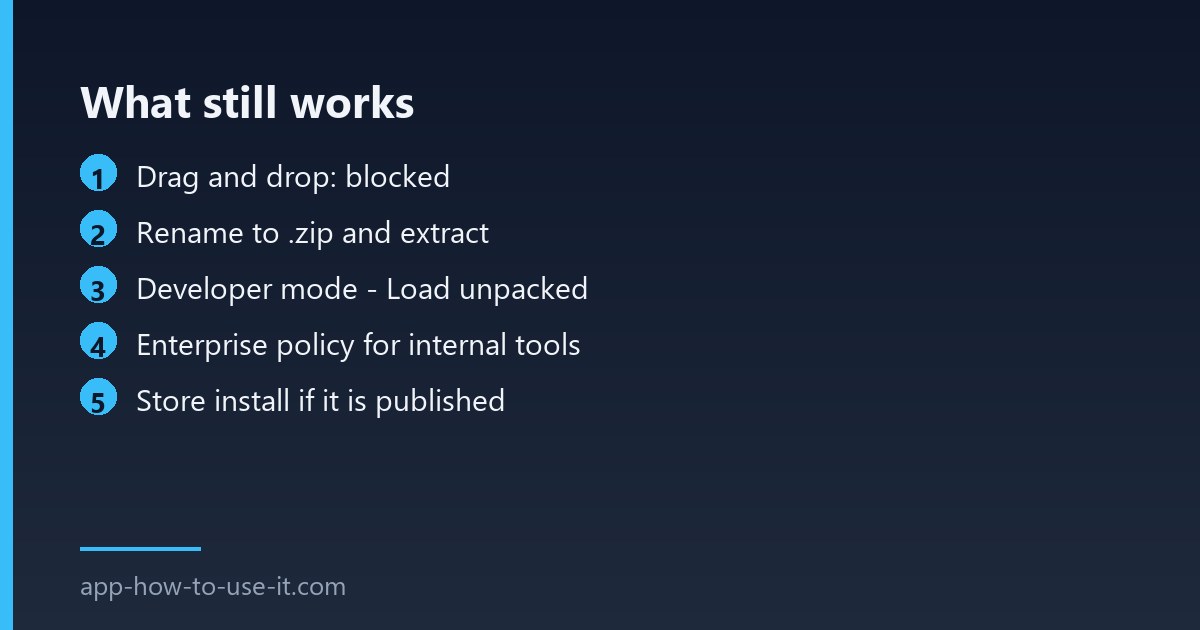
| Method | Works in 2026? | Survives a restart? |
|---|---|---|
| Drag the .crx onto chrome://extensions | No on Windows and macOS | — |
| Unpack it and use Load unpacked | Yes, with developer mode on | Usually, if the folder stays put |
| Enterprise policy force-install | Yes | Yes |
| Install from the Chrome Web Store | Yes | Yes |
The method that still works
- Rename the file from
name.crxtoname.zip. - Extract it into a folder you will not delete later — not your Downloads folder.
- Open chrome://extensions and switch on Developer mode in the top right.
- Click Load unpacked and select the folder you extracted.
- If Chrome complains about the manifest, the extension is too old to run — see the note below.
Google documents this path for developers in its own extension tutorial, which is a good sign that it is not going away: it is how every extension author tests their work.
Why Chrome keeps disabling it anyway
Unpacked extensions carry a warning banner, and Chrome may switch them off after an update or a profile refresh. That is deliberate, not a bug — it is the same hardening that removes sideloaded extensions. If a tool you depend on keeps vanishing, our guide to Chrome extensions not working after an update covers how to tell which rule caught it.
There is also a hard stop that no method gets around. Extensions built on the old Manifest V2 platform no longer run at all, so an archived .crx of a favourite tool from a few years ago will load and then refuse to work. In that case you need an author who rebuilt on Manifest V3, not a better installation trick.
When you genuinely need this
- You are testing an extension you are building yourself.
- Your company distributes an internal tool that will never be public — in which case the right answer is an enterprise policy, not a manual install on each machine.
- A developer sent you a pre-release build to try before it reaches the store.
When you should not
If you found the file on a download site offering a paid or removed extension for free, stop. An extension can read the pages you visit; a repackaged one with an extra script added is the cheapest way to steal a session. The store listing exists precisely so that the code you run has been through a review. When the extension you want is on the store, use the normal store install instead.
Can I install a crx file on Linux or ChromeOS?
The sideload block has historically been enforced on Windows and macOS, so other platforms have been more permissive. Treat that as a difference in enforcement rather than a recommendation — the security reasoning is identical everywhere.
Will my extension update itself after this?
No. An unpacked extension has no update channel, so it stays at the version you loaded until you replace the folder yourself. That is one more reason to prefer the store whenever the extension is published there.
So the short answer: to install a crx file today, unpack it and load the folder in developer mode, and expect Chrome to nag or disable it. If the extension exists on the store, that route is faster, safer and keeps itself up to date — the manual method is for developers and internal tools, not for everyday use.