You restart the browser, the toolbar is emptier than it was yesterday, and half your tools are gone. Chrome extensions not working after a browser update is rarely a bug — Chrome switched them off deliberately, and it will tell you why if you know where to look. There are five reasons it does this, and only one of them is fixed by reinstalling.
First, read what the extensions page says
Open chrome://extensions before changing anything. A disabled extension almost always carries a short note under its name, and that note decides which of the five cases you are in.
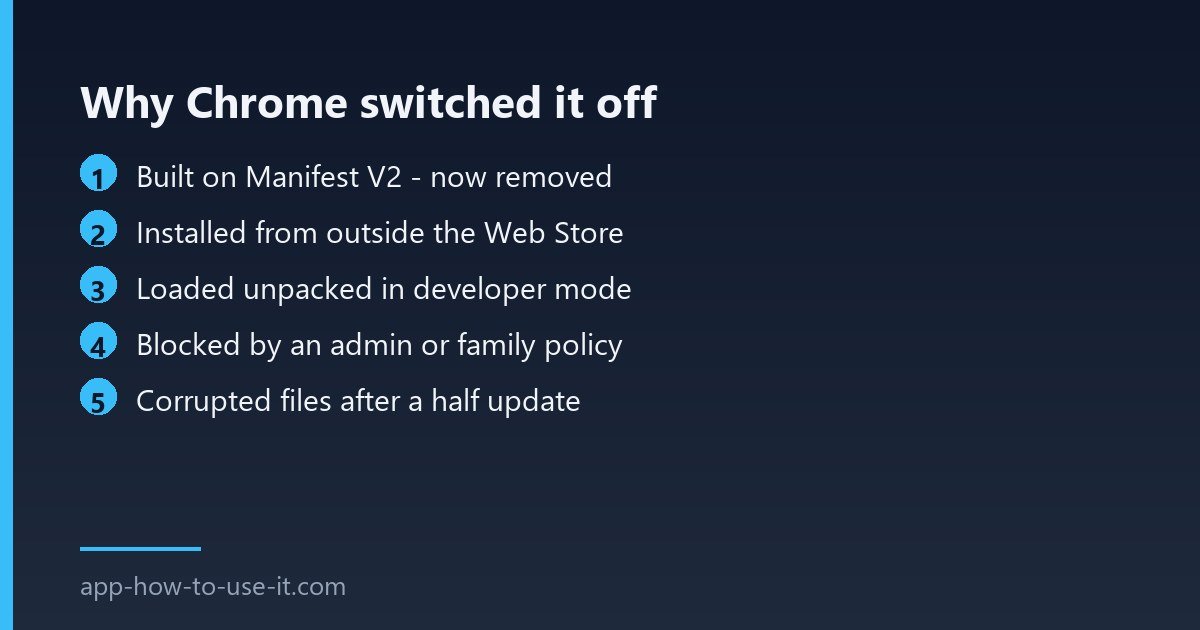
| What Chrome says | What actually happened | Can you fix it? |
|---|---|---|
| No longer supported / outdated | The extension still uses Manifest V2 | No — find a replacement |
| Not from the Chrome Web Store | It was sideloaded from a file | Yes — reinstall from the store |
| Nothing, but the toggle is grey | Loaded unpacked in developer mode | Yes — load it again |
| Blocked by your administrator | An enterprise or family policy | Only the policy owner can |
| Corrupted and disabled | Damaged extension files | Yes — repair or reinstall |
Cause 1: the extension was built on Manifest V2
This is the one people mistake for a broken install, and no amount of reinstalling helps. Google retired the old extension platform on a published schedule: Manifest V2 add-ons were disabled by default across all channels on 31 March 2025, and from Chrome 138 in July 2025 users could no longer switch them back on. The enterprise escape hatch, the ExtensionManifestV2Availability policy, stopped working with Chrome 139 the month before. The last step landed on 31 August 2026, when the remaining Manifest V2 extensions were removed from the Chrome Web Store altogether. You can read the dates on Google’s own Manifest V2 deprecation timeline.
If your extension fell at this hurdle, the only real fix is a replacement that was rebuilt on Manifest V3. Check the developer’s site first — many popular tools shipped an MV3 version under a new listing.
Cause 2: it was installed from outside the Web Store
Chrome quietly removes add-ons that arrived as a file rather than through a store listing, and an update is when it does the housekeeping. If you originally dragged a .crx onto the extensions page, expect this to keep happening. Install the same tool from its Chrome Web Store listing instead and the problem stops for good.
Cause 3: developer mode and unpacked folders
Extensions loaded with Load unpacked live only as long as the folder stays where it was and Chrome keeps developer mode on. A profile refresh or an update can drop them. If you are testing your own work, that is normal; if a tool you rely on was installed this way, move it to a proper store install.
Cause 4: a policy is blocking it
Work laptops, school devices and Family Link accounts can all carry a blocklist that survives updates. Chrome labels these clearly, and there is no setting on your side that overrides them. On a personal machine that once belonged to an organisation, leftover policy entries can linger — that case is worth checking before you assume the extension is at fault.
Cause 5: damaged files after a half-finished update
- Close Chrome completely, including any background instance in the task tray.
- Reopen it and click Repair if Chrome offers it on the extensions page.
- If there is no repair button, remove the extension and install it again from the store.
- Check chrome://settings/help to confirm the browser itself finished updating.
Will my settings come back after reinstalling?
Sometimes. Extensions that sync their settings to an account restore them on sign-in; extensions that keep data locally start empty. Export your configuration before removing anything, if the extension offers an export at all.
Does clearing the cache help with chrome extensions not working?
Rarely. Browsing cache and extension code are stored separately, so clearing it fixes page rendering, not a disabled add-on. It is worth a try only when an extension loads but behaves oddly on one specific site.
Work down the table and the diagnosis takes about a minute. In practice, most reports of chrome extensions not working after an update turn out to be the Manifest V2 retirement rather than anything broken on the machine — and in that case the fix is a replacement, not a reinstall.