
A VPN not working on Chrome while everything else on the machine looks normal is a specific kind of fault, and that detail narrows the search enormously. Either the browser extension has been switched off, or it is allowed to watch only some sites. The third option is that you are using an extension when you think you are using the full application. Work through these seven checks in order and you will land on the real cause rather than reinstalling things at random.
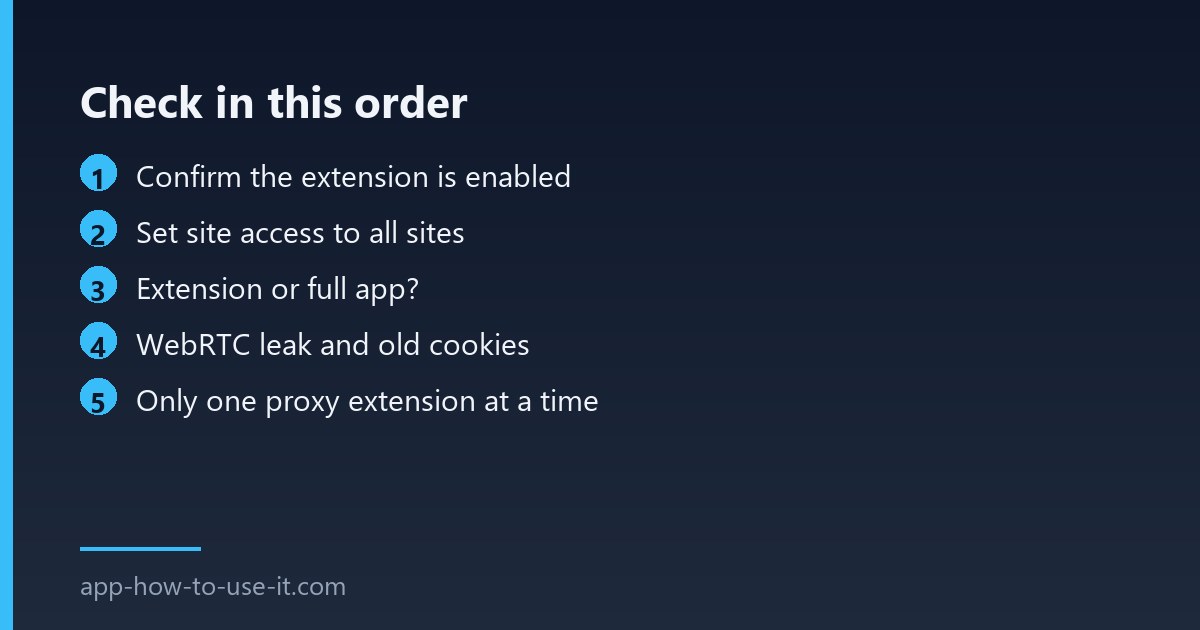
Start by finding out what is protected
Open a site that reports your IP address in Chrome, then check the same thing outside the browser — any desktop application that shows your connection will do. Two different answers mean you are running a browser extension, not a device-wide tunnel. That is not a fault, but it changes which fixes apply.
| What you see | Likely cause | Go to |
|---|---|---|
| Extension icon grey or missing | Chrome disabled it | Fix 1 |
| Works on some sites, not others | Site access restricted | Fix 2 |
| Browser shows a new country, apps do not | Extension, not full app | Fix 3 |
| Country is right but a site still blocks you | Leak or stale cookies | Fixes 4–5 |
| Nothing connects at all | Conflicting extension or proxy | Fixes 6–7 |
Fix 1: check the extension is still enabled
- Open chrome://extensions and confirm the toggle is on.
- Look for a note under the name — Chrome explains there when it has disabled something.
- Restart Chrome completely, including any background process in the task tray.
- If it keeps switching itself off, see our guide to extensions not working after an update.
Fix 2: widen the site access setting
Chrome lets you limit an extension to a short list of sites. A limited VPN extension simply does nothing anywhere else, which looks exactly like a broken tunnel. Click Details under the extension and set Site access to On all sites.
Fix 3: make sure you know which tool you installed
Most browser VPNs are encrypted proxies that cover the browser and nothing else. Games, mail clients and torrent software keep using the normal connection, so a leak test run outside Chrome will show your real address. We compared the two properly in VPN extension vs VPN app — if you need protection outside the browser, no setting in the extension will provide it.
Fixes 4 and 5: leaks and leftover cookies
Chrome can reveal local network addresses through WebRTC even while a proxy is active. A site may then still work out roughly where you are. Serious extensions include a WebRTC setting; if yours does not mention it, assume it is unhandled. Separately, a site that already knows you from before will keep treating you the same way. Clear cookies for that one site and reload before deciding the VPN failed.
Fix 6: look for a second extension in the way
Only one extension can control Chrome’s proxy settings at a time. Install two VPN or proxy tools and the second one quietly loses, usually without saying so. The proxy permission is exclusive by design. Disable every other VPN, proxy or privacy extension, test again, then re-enable them one at a time.
Fix 7: when a VPN not working on Chrome is a policy
Work and school devices often block VPN extensions outright, and the browser will say so under the extension name. There is no user-side setting that overrides a managed policy. Check chrome://policy to see what is being enforced and who set it.
Why does the VPN work in incognito but not normally?
Because your other extensions are off in incognito. That result is a diagnosis rather than a fix: something in your normal profile is interfering, and fix 6 finds it.
Should I use the extension and the app together?
No. Stacking two tunnels on the same traffic costs speed without adding protection, and the two can fight over the proxy settings. Pick one — our guide to free VPN extensions for Chrome covers when the browser-only route is enough.
Run the checks in this order and the answer usually arrives within a couple of minutes. In practice, a VPN not working on Chrome is nearly always a disabled extension, a restricted site access setting, or a browser tool being asked to do an application’s job.