The install dialog says an extension can “read and change all your data on all websites” and leaves you to decide what that means. Chrome extension permissions are real and specific, but the warnings Chrome shows are deliberately broad, so a harmless tool and a dangerous one can produce identical text. This guide translates the common ones into what they actually allow.
The ones you will see most often
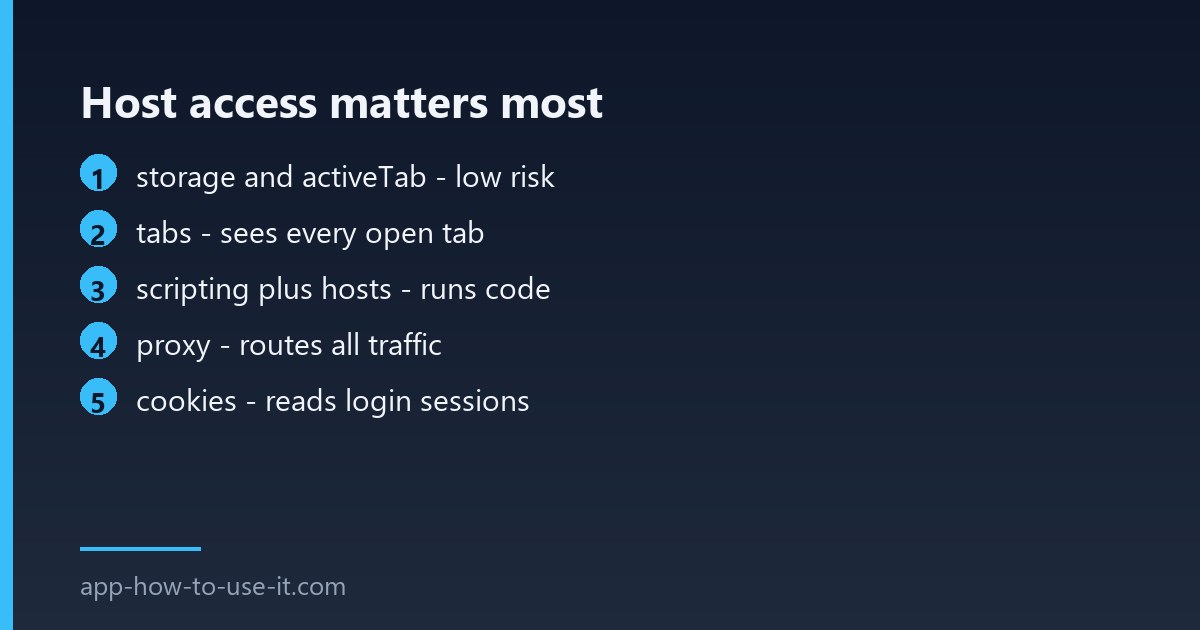
| Permission | What it really allows | Concern |
|---|---|---|
storage | Save settings locally or to your account | Low |
activeTab | Act on the current tab, only after you click the icon | Low |
tabs | See titles and addresses of all open tabs | Medium |
scripting + host access | Run code inside the pages you visit | High |
proxy | Route all browser traffic through a server | High |
downloads | Start downloads and read the download list | Medium |
cookies | Read and set cookies, including login sessions | High |
webRequest | Observe requests the browser makes | Medium |
Google documents the full set in its permissions reference, which is the one place worth checking when a name is unfamiliar.
Host access is the one that matters
Everything else is secondary to which sites an extension can touch. <all_urls> means every page you open, including your bank and your webmail. A listed host such as *://*.youtube.com/* means one service and nothing else. Two extensions with the same feature can differ entirely here, and the narrower one is almost always the better choice.
How to see and narrow what you granted
- Open chrome://extensions and click Details on any extension.
- Read the Permissions section — it lists them in plain language.
- Under Site access, switch from On all sites to On specific sites where the tool only needs one service.
- Choose On click for anything you use occasionally — the extension then does nothing until you ask it to.
Be aware that narrowing site access breaks tools that genuinely need to watch pages. A download manager or an ad blocker limited to one site will appear broken everywhere else, which is a common self-inflicted support case.
When wide permissions are reasonable
A password manager has to see login forms. An ad blocker has to inspect requests on every site. A VPN extension has to control the proxy. Refusing those is refusing the feature. The question is never whether a permission is powerful, but whether the feature you want requires it — and whether you trust the publisher with it.
Signals that chrome extension permissions do not fit
- A theme, wallpaper or emoji tool asking to read data on all sites.
- A single-site tool requesting
<all_urls>instead of that site. - A simple utility asking for
cookies— that is session access. - An update that suddenly adds permissions to an extension you have had for years.
That last one is worth watching. Chrome disables an extension and asks you to approve again when an update widens its permissions, and clicking through that prompt out of habit is how a quiet change gets accepted.
Optional permissions and why they are a good sign
An extension can declare a permission as optional, which means it is not granted at install and the extension has to ask when the feature is first used. A tool built that way starts with almost nothing and requests access only for the part you actually touch. When you see a prompt appear later — “this extension wants to read data on example.com” — that is optional permissions working, not something going wrong.
It is worth treating as a quality signal. Between two extensions with the same feature list, the one that asks for access when needed has been built with more care than the one that takes everything up front.
Does the store review guarantee an extension is safe?
It lowers the risk, it does not remove it. Review happens at submission, and an extension can change hands or be updated later. Installing from the store still matters — our guide to installing from the Chrome Web Store explains why, and loading a CRX file manually covers what you give up when you skip it.
Can I tell what an extension does with its access?
Not from the permission list alone. It tells you what is possible, not what happens. The practical substitutes are the publisher’s identity, a privacy policy that names what is collected, and an update history that shows someone is maintaining it.
Read in this order — host access first, then the specific capabilities — chrome extension permissions stop being a wall of warnings and become a short checklist. Narrow what you can, leave what the feature needs, and treat a sudden permission change as the signal it is.