People usually try to backup chrome extensions the day before they set up a new machine, and discover the awkward part on the other side: the extensions arrive, but the settings inside them do not. Chrome’s sync was designed to carry your list of add-ons, not the data each one stores. Knowing where that line falls saves you rebuilding a year of configuration from memory.
What sync actually moves
Sign in on the new computer with the same account, turn sync on, and Chrome reinstalls your extensions from the store within a few minutes. That part is reliable. What travels with them varies by extension, because each one chooses where to keep its data.
| Item | Comes across with sync? |
|---|---|
| The list of installed extensions | Yes |
| Which ones are enabled | Usually |
| Settings stored in the extension’s sync area | Yes |
| Settings stored locally by the extension | No |
| Rules, filter lists and custom blocklists | Usually not |
| Logins inside an extension | No — you sign in again |
| Extensions loaded unpacked in developer mode | No |
Google’s sync help page lists what the feature covers at account level, which is a good starting point before you rely on it for anything important.
Backup Chrome extensions by making a readable list
- Open chrome://extensions on the old machine.
- Print the page to PDF — it captures every name, version and ID in one file.
- Keep that PDF outside the computer you are replacing.
- On the new machine, work down it and tick off what sync restored, then install the rest by hand.
This sounds basic, and it is the step people skip. Without a list you will not notice the three tools you used weekly until the week after.
Export the settings that matter
Any extension you have configured heavily deserves its own export. Open each one’s options page and look for a backup, export or download-settings button — ad blockers, tab managers, note tools and password helpers almost always have one, and the file they produce is the only reliable way to move custom rules. Do this before you wipe anything, because the export usually lives inside the extension you are about to lose.
Why copying the profile folder is a bad idea
The obvious shortcut is to copy Chrome’s user data folder to the new computer. It often half-works, which is worse than failing: extension databases are tied to the machine and the browser version, and encrypted values such as saved passwords are protected with a key from the original operating system install. The usual result is a profile that behaves oddly for weeks. To backup chrome extensions properly, use sync for the list and per-extension exports for the contents.
A five-minute checklist
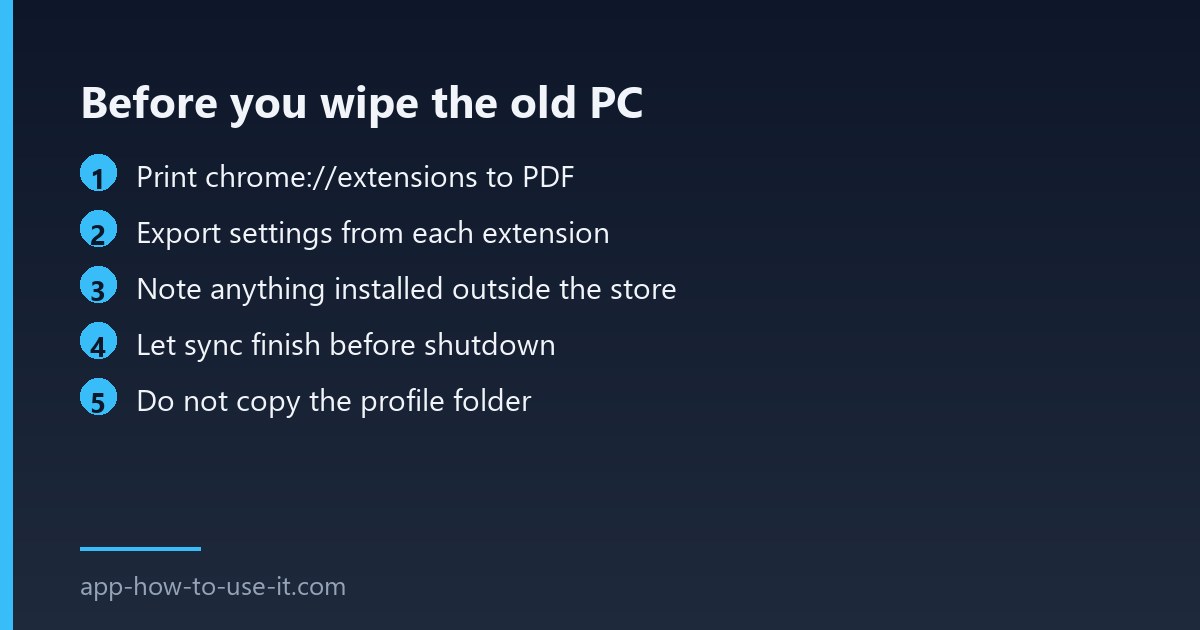
- Print the extensions page to PDF.
- Export settings from every extension that offers it.
- Note which ones you installed from outside the store — those will not come back on their own.
- Confirm sync is on and has finished before you shut the old machine down.
Can I move an extension that was removed from the store?
Not through sync, because there is nothing left to reinstall from. Keeping a copy of the files is possible but comes with real caveats — see our guide to installing a CRX file in Chrome for what Chrome still permits and why an unpacked copy stops receiving updates.
Does this work between Chrome and Edge?
Partly. Edge runs the same extensions and can install them from the Chrome Web Store, but each browser syncs through its own account, so the list does not cross over. Your printed list does the work instead. Our guide to installing from the Chrome Web Store covers that route.
Done in this order the move is dull, which is the goal. The right way to backup chrome extensions is split in two: let sync carry the list of add-ons, and let your own exports carry everything each one has stored. The printed page then tells you when the job is actually finished.