Nine gigabytes in, the connection blinks, and Chrome marks the file as failed. Whether you can resume interrupted download jobs at that point is not really up to Chrome — it depends on what the server allows and whether the partial file survived. That is why the Resume button works beautifully one day and does nothing the next. Here is how to tell which situation you are in.
Try the built-in route first
- Open chrome://downloads.
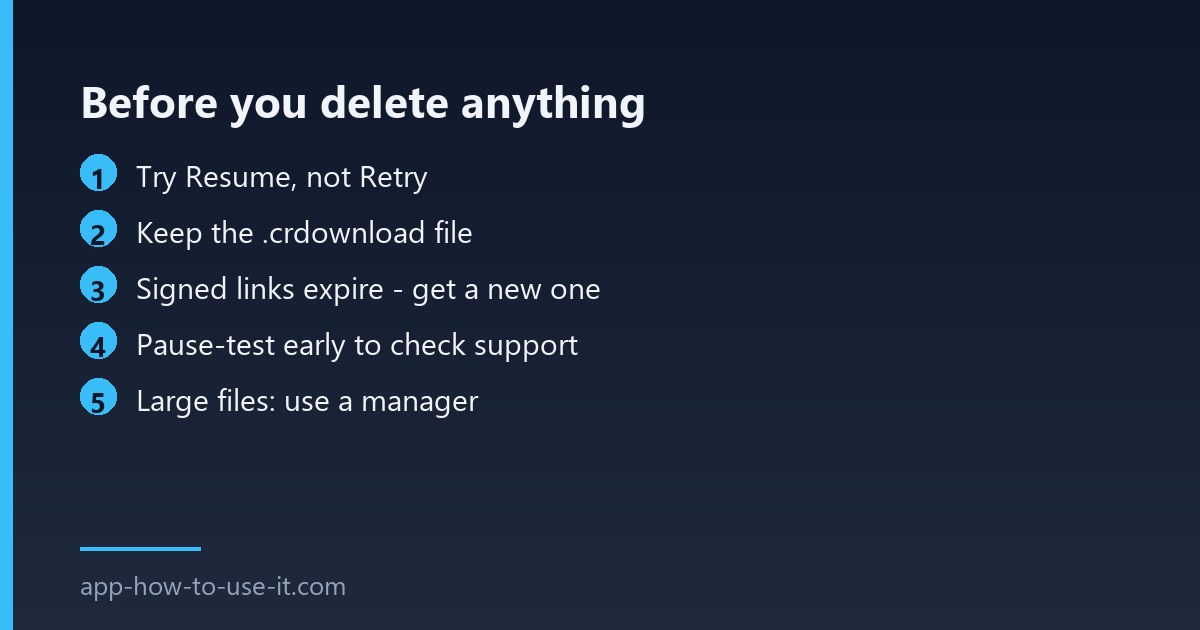
- Find the failed entry and click Resume if it is offered.
- If only Retry appears, the transfer will start from zero.
- Check the download folder for a
.crdownloadfile — that is the partial data, and it has to still be there.
Do not delete the entry from the list before you try. Removing it tells Chrome to discard the partial file, and then nothing can be continued.
What decides whether resuming is possible
| Condition | Can it continue? |
|---|---|
| Server accepts range requests | Yes, this is the requirement |
Partial .crdownload file still present | Yes |
| Link is time-limited or signed | No — the address expires |
| File sits behind a login session that dropped | No |
| Download came from a redirect chain | Usually not |
| You restarted the computer mid-transfer | Sometimes, if the partial survived |
Signed links are the most common disappointment. Cloud storage and software vendors often hand out an address valid for a few minutes, so by the time you click Resume the address itself is dead even though the server supports resuming perfectly well. The answer there is to generate a fresh link from the original page.
When Chrome cannot resume interrupted download jobs
Chrome’s downloader is deliberately simple: one connection, one attempt, no retry schedule. On a stable line that is fine. On a connection that drops every twenty minutes it means a large file may never finish, because every drop costs you the whole transfer. Google’s own download error guidance covers the browser side, but it cannot change that design.
This is the point where a download manager earns its place. These tools keep their own record of what has arrived, reconnect on their own schedule and continue from the exact byte. Our guide to the IDM extension for Chrome explains how the hand-off from the browser works; the same principle applies to any manager with resume support.
Reduce the odds of losing the next one
- Download large files over a cable rather than Wi-Fi when you can.
- Keep the laptop awake — sleep ends the transfer on most systems.
- Avoid cloud-synced folders as the destination; the sync client can lock the partial file.
- Leave the tab the download came from open, in case the session is needed again.
Tell in advance whether a file can be continued
You do not have to wait for a failure to find out. Pause the download deliberately a few seconds after it starts, wait a moment, then press Resume. If the progress carries on from where it stopped, the server supports continuing and a drop later will be recoverable. If the counter jumps back to zero, you now know that this particular file is all-or-nothing — and that is the moment to hand it to a download manager rather than the browser.
The test takes ten seconds and is worth doing before anything large. It also tells you something the file size does not: two downloads of identical size from different servers can behave completely differently here, because the behaviour belongs to the server, not the file.
Can I rescue a .crdownload file by renaming it?
Only for formats that tolerate truncation, such as some video and audio containers, and the result will be cut short. For an archive or an installer the file is incomplete and will fail its own integrity check. Renaming does not reconstruct missing bytes.
Why does the file fail at the same percentage every time?
A repeatable stopping point points at something other than the network — most often security software inspecting the stream, or a disk that has run out of room. Our guide to the download failed network error works through those causes.
So the short version: try Resume before deleting anything, check whether the link was time-limited, and accept that Chrome cannot resume interrupted download jobs on an unstable line. For files measured in gigabytes, a manager that reconnects by itself is the difference between a pause and starting over.