Disclosure: Auto History Wipe is made by the team behind App How To Use It.
Auto History Wipe is a free extension that clears your browsing history, cache, cookies and download list automatically: when Chrome starts, on a schedule you pick, or with one click. Chrome can delete cookies when you close it, but it has no built-in option to clear history on its own. This guide shows how to set it up and how to keep the sites you want to stay logged in to.
What Auto History Wipe can clear
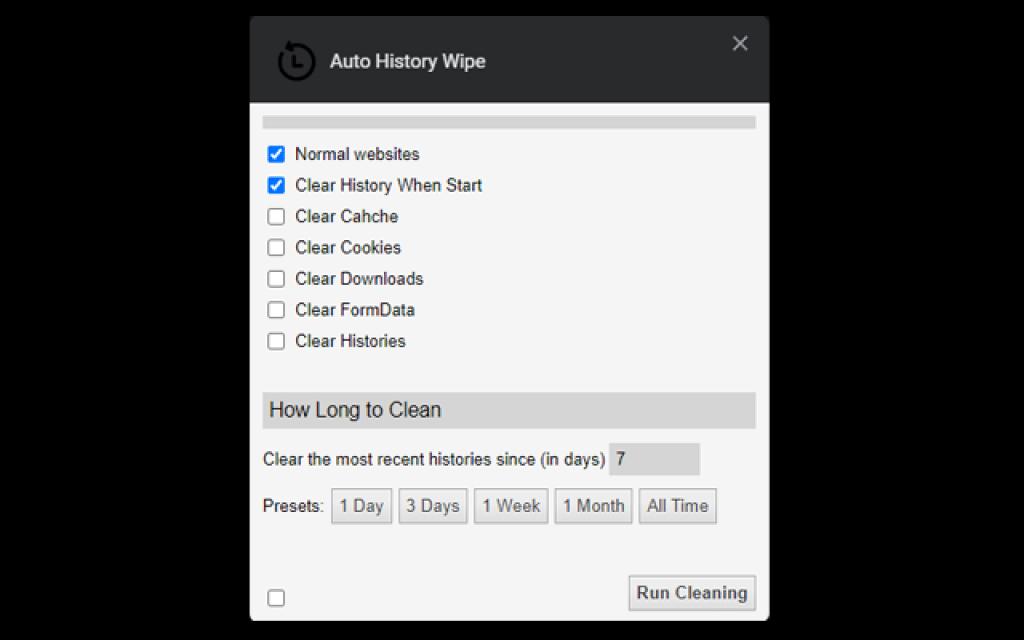
- Browsing history, cache, cookies, download history and saved form data.
- Advanced items you have to switch on yourself: saved passwords, local storage, service workers and IndexedDB.
- A time range: the last hour, 24 hours, 7 days, 4 weeks or everything.
When it runs
| Option | What happens |
|---|---|
| On startup | Data is cleared each time the browser starts |
| Schedule | Every hour, every 12 hours, daily or weekly |
| Clean Now | One click, with a confirmation step |
| Keyboard shortcut | Ctrl+Shift+E (Cmd+Shift+E on a Mac) |
| Presets | Quick, Standard and Deep cleaning profiles |
How to set up Auto History Wipe
- Install it from the Chrome Web Store (or from Edge Add-ons for Edge).
- Click the extension icon and open its options.
- Tick the kinds of data you want removed and choose the time range.
- Choose when to clean: at startup, on a schedule, or only when you press Clean Now.
- Add the sites you want to keep, such as your email, to the whitelist.
Recommended settings for common situations
| Situation | What to clear | When | Whitelist |
|---|---|---|---|
| Shared family or office computer | History, cookies, cache, downloads | On startup, all time | Nothing, so no one stays signed in |
| Your own laptop, more privacy | History, cache, downloads | Daily | Email, bank, work tools |
| Keeping Chrome fast | Cache only | Weekly | Not needed, cookies stay |
Start with the Quick or Standard preset and adjust from there. The deeper a preset goes, the more kinds of data it removes, and clearing cookies signs you out of every site that is not on the whitelist. Try a new setting once with Clean Now before you put it on a schedule.
Clean Now or a schedule?
A schedule is the point of the extension: you set it once and stop thinking about it. Clean Now, or the Ctrl+Shift+E shortcut, is useful on top of that, for example right after you have used a shared computer for something private. The extension shows a confirmation first, so a stray key press does not wipe anything by accident.
How do I stay logged in to some sites?
Use the whitelist. Domains on it, and optionally your bookmarked sites, keep their cookies when everything else is cleared, so you are not signed out of the services you use every day. Leave the advanced option for saved passwords switched off unless you really want them deleted.
Can Chrome clear history automatically without an extension?
Only partly. In Chrome’s settings you can have cookies and site data removed when you close all windows, but history is kept until you delete it with Ctrl+Shift+Delete. Browsing in an incognito window avoids saving history in the first place; our guide to opening the current tab in incognito shows a quick way to switch.
Frequently asked questions
Does the extension collect my data?
The developer states on the store listing that it does not collect or use your data. Its statistics are kept on your own device.
Will it delete my passwords?
Only if you tick saved passwords in the advanced options. It is off unless you choose it.
Which browsers does it support?
Chrome and Microsoft Edge. More details and guides are on the official site, autohistorywipe.com.
If you want your browser to forget what you did without remembering to clear it yourself, Auto History Wipe does that on a schedule you control. Set the whitelist first, then let it run.